
Mouse-Free Navigation
Mise Browser is built around a keyboard-driven workflow, enabling efficient navigation of complex web pages without reaching for a pointing device.
Link Hints Overlay (Ctrl + F)
Link Hints allow you to click any link, button, or input field on a web page using short letter combinations:
- Press Ctrl + F to trigger the hint labels.
- Mise injects two-letter tags over every clickable element on the page, using an ergonomic left-hand home-cluster layout:
q, w, e, a, s, d, z, x, c, r, f, v. - Type the two letters corresponding to your target element:
- Links navigate immediately.
- Text inputs and search bars automatically receive focus for immediate typing.
- Press Escape or press Ctrl + F again to dismiss hints without clicking.
Floating Address Bar (Ctrl + L)
Press Ctrl + L at any time to open the floating, high-contrast address overlay:
- Direct Navigation: Type any full or partial URL and press Enter.
- Live Search Autocomplete: As you type, Mise queries your browsing history and active bookmarks live. Use the Up and Down arrow keys to select a suggestion and press Enter.
- Direct Calculator: Type any arithmetic expression (e.g.
240 * 1.2,15% of 200,sqrt(144)) to compute the answer live in the dropdown. Press Enter to copy the answer to your clipboard, or press Tab to insert the result into the address bar and continue calculating. - DuckDuckGo Bangs: Type any DuckDuckGo bang (e.g.
!w Arch Linux,!gh MiseBrowser,!yt ambient) to route directly to thousands of external search destinations. - Workspace Switching: Type
wsfollowed by a workspace name (e.g.ws work) to switch workspaces instantly from the address bar. - Press Escape to hide the address bar and return focus directly to the active web page.
DuckDuckGo Bang Redirection
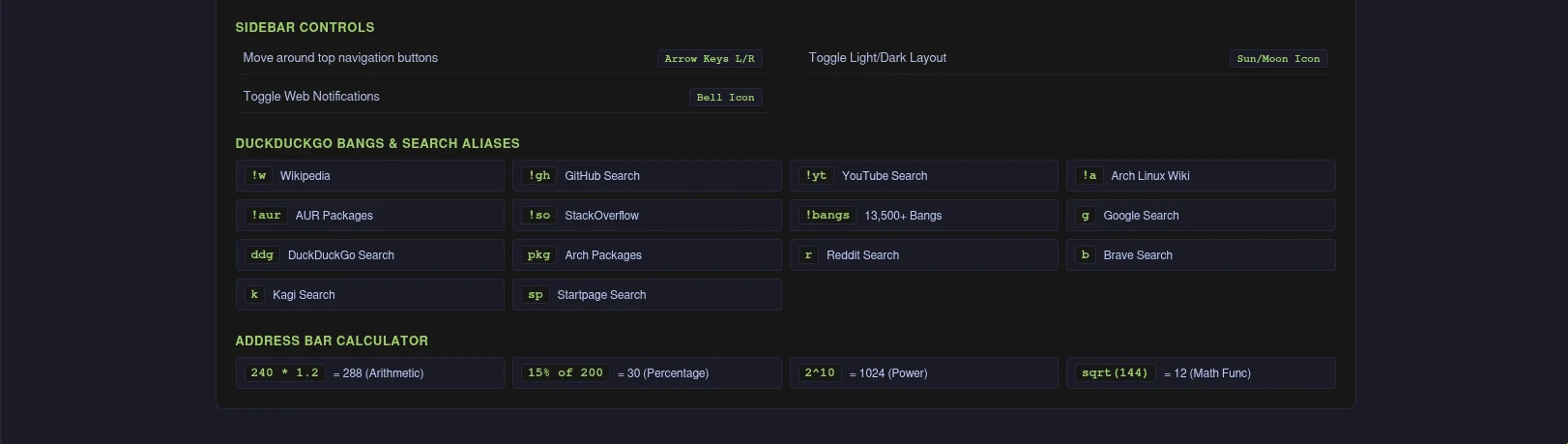
Mise supports over 13,500 DuckDuckGo bangs directly from the floating address bar. Bangs route queries directly to the target website:
!w Arch Linux: Redirects directly to the Arch Linux article on Wikipedia.!gh MiseBrowser: Redirects directly to GitHub repository search.!yt lo-fi: Redirects directly to YouTube video search.!a NetworkManager: Redirects directly to the ArchWiki page.!so promises: Redirects directly to Stack Overflow.
Popular bangs display rich destination badges in the autocomplete dropdown. You can place the bang at the beginning or end of your query (e.g. !w Arch Linux or Arch Linux !w).
Live Address Bar Calculator
The address bar includes a built-in mathematical expression evaluator that runs completely locally without external network requests:
- Basic Arithmetic:
240 * 1.2,(100 + 25) / 5,150 - 45 - Powers & Roots:
2^10,sqrt(144),cbrt(27) - Percentages:
15% of 200,25% * 80 - Trigonometry & Logarithms:
sin(0),cos(pi),log2(256),log10(1000) - Constants:
pi,e
Selecting the calculator result copies the computed value to your system clipboard and displays a status bar confirmation.
Search Engine Aliases
When typing queries into the address bar, prepend shorthand prefixes to route searches directly to specific services:
| Shorthand Alias | Search Destination | Example Query |
|---|---|---|
g <query> | Google Search | g linux kernel archives |
ddg <query> | DuckDuckGo | ddg rust async tutorial |
a <query> | Arch Linux Wiki | a hyprland config |
pkg <query> | Arch Linux Package Search | pkg neovim |
gh <query> | GitHub Repository Search | gh electron |
yt <query> | YouTube Search | yt ambient coding music |
r <query> | Reddit Search | r archlinux |
so <query> | StackOverflow | so javascript closures |
sp <query> | Startpage Search | sp private search |
b <query> | Brave Search | b web standards |
k <query> | Kagi Search | k technical docs |
If no alias is entered, Mise uses your configured default search engine set in Preferences.
Auto-Collapsing Vertical Sidebar (36px Strip)
To dedicate maximum horizontal screen real estate to web content, Mise features an auto-collapsible vertical sidebar:
- Compact 36px Strip: In its default collapsed state, the sidebar shrinks to a 36px icon bar displaying only your workspace badge and crisp tab favicons.
- Smooth Flyout on Hover: Moving your mouse pointer over the 36px strip smoothly expands the sidebar to 260px as an overlay flyout with drop shadow. Because this expands as an overlay, the active webview never resizes, preventing GPU lag and page reflows on fanless hardware.
- Shortcut Expansion: Press Ctrl + Shift + Z to toggle sidebar expansion, or press Ctrl + S to focus the sidebar and expand it immediately for arrow-key navigation. Pressing Escape or Ctrl + W collapses the sidebar smoothly back to the 36px strip.
- Pinning: Click the pin icon button at the bottom of the sidebar, toggle Auto-Collapse Sidebar in Preferences (Ctrl + H), or run Pin / Unpin Sidebar in the Command Palette to pin the sidebar permanently open at 260px.
Sidebar and Webview Focus Management
Mise maintains clean separation between sidebar navigation and active web page interaction:
- Ctrl + S: Shifts keyboard focus to the vertical tab sidebar, smoothly expanding it. Use the Up and Down arrow keys (or
j/k) to cycle through open tabs, and press Enter to switch to the highlighted tab. - Ctrl + W: Shifts keyboard focus directly into the active webview, automatically collapsing the sidebar back to the 36px strip.
- Ctrl + X: Closes the currently active tab.
- Ctrl + R: Reloads the active tab.
Modal Navigation Engine
Mise Browser provides a Vim-inspired modal navigation engine that frees you from chorded modifiers during routine web browsing. The engine distinguishes between three primary operational states:
- NORMAL Mode: The default state. Home-row keys control page scrolling and browser actions without requiring Ctrl or Alt chords.
- INSERT Mode: Automatically entered whenever you click or focus a text input, search box, or content-editable field (or press
iexplicitly). Keystrokes pass directly into the field. Pressing Escape blurs the field and immediately returns to NORMAL mode. - PASSTHROUGH Mode: Designed for rich web applications like Google Docs, sheets, design suites, and cloud terminals. In passthrough mode, all keystrokes pass directly to the guest web application without browser interception. Toggle passthrough mode at any time using Shift + Escape or by clicking the mode badge in the status bar.
NORMAL Mode Keymap
| Key | Action | Description |
|---|---|---|
j | Scroll Down | Smooth scroll down by 80px |
k | Scroll Up | Smooth scroll up by 80px |
d | Dark Reader | Toggles high-contrast dark theme on active tab |
u | Half Page Up | Smooth scroll up by half the viewport height |
h | Scroll Left | Smooth scroll left by 80px |
l | Scroll Right | Smooth scroll right by 80px |
gg | Jump to Top | Smooth scroll to top of page |
G | Jump to Bottom | Smooth scroll to bottom of page |
t | New Tab | Opens a new tab with default search engine |
x | Close Tab | Closes the current active tab |
o | Address Bar | Opens floating address overlay for navigation |
r | Reload | Reloads active tab |
R | Force Reload | Reloads active tab ignoring cache |
H | History Back | Navigates back in page history |
L | History Forward | Navigates forward in page history |
/ | Find in Page | Opens the in-page search bar |
f | Link Hints | Injects two-letter hint tags over clickable links |
e | Reader View | Toggles native distraction-free reader view |
w | Dashboard | Opens the Workspace Dashboard tree |
s | Focus Sidebar | Moves focus to vertical sidebar tab list |
y | Yank URL | Copies current URL to clipboard with status bar feedback |
i | Insert Mode | Explicitly enters INSERT mode |
Shift + Escape | Passthrough Mode | Toggles PASSTHROUGH mode on or off |
Workspace Badges & Favicons
- Workspace Badges: The top of the strip displays a compact letter or number badge for the current workspace (such as
W1orP). Clicking the workspace badge opens the Workspace Dashboard (Ctrl + Shift + W). - Favicons & Indicators: Each tab renders its website favicon with smart local and remote caching. Sleeping tabs display a subtle moon indicator, while tabs playing audio render a green audio badge.
Dual Split View (1x2 Side by Side and Stacked)
For comparing documentation, pull requests, or research sources without tiling window manager complexity, Mise includes a built-in dual split view:
- Instant Comparison: Press Ctrl + \ or Ctrl + Alt + S (or click the column icon in the sidebar) to split the viewport into two 50% columns side by side.
- Orientation Toggle: Right-click the split icon button or execute Cycle Split View Orientation in the Command Palette to switch between side by side (vertical columns) and stacked (horizontal rows).
- Focus Switching: Press Ctrl + Alt + O or Ctrl + Alt + Tab to switch keyboard focus between Pane 1 and Pane 2. The active pane displays an accent focus ring, and its matching sidebar tab is highlighted with a numbered badge (1 or 2).
- Pane Swapping: Press Ctrl + Alt + X to swap the positions of the two open split panes instantly.
- Context Menu Link Routing: Right-click any hyperlink on a page and select Open Link in Split View to open or send that link directly into the adjacent comparison pane.
- Tab Assignment: Clicking any tab in the sidebar while in split mode routes that page into whichever pane currently holds active focus.
- Hibernation Exemption: Both visible split panes are automatically protected from background tab sleep while displayed on screen.
Native Reader View (F9 / e)
Mise includes an in-engine DOM distiller powered by Mozilla Readability to strip ads, sidebars, cookie banners, and visual clutter from articles:
- Instant Distillation: Press F9 or press e in NORMAL mode to extract the core article, byline, and imagery into a clean reading format.
- Isolated Shadow DOM: The reader view is rendered inside an isolated Shadow DOM container over the active document. Closing Reader View (via Escape, F9, or the close icon) restores the original web page instantly without reloading or discarding form inputs.
- Custom Typography and Themes: A floating controls pill at the top-right corner allows adjusting:
- Themes: Dark (Tokyo Night), Sepia (Warm Paper), and Light.
- Font Families: Modern Sans-serif, Classic Serif, or Clean Monospace.
- Font Size: Adjustable scale between 14px and 28px.
- Reading Width: Narrow (620px), Medium (760px), or Wide (940px).
- Reading Metrics: Header estimates word count and reading time based on typical reading velocity.