
Workspaces & Container Partitions
Mise introduces Firefox Container-style isolation combined with a fluid workspace tree.
Traditional browsers store cookies, localStorage, and credentials in a single shared profile, making it difficult to maintain multiple logins to the same service (e.g. personal and work GitHub or Google accounts) without relying on separate windows or private browsing sessions.
Multi-Account Container Partitions
In Mise, every workspace is automatically assigned its own dedicated, persistent Electron container partition:
- A workspace named
Workruns inside partitionpersist:work. - A workspace named
Personalruns inside partitionpersist:personal. - A workspace named
Cloud Devruns inside partitionpersist:cloud-dev.
What This Enables:
- Simultaneous Account Logins: Remain signed into different accounts on Google, GitHub, AWS, or Slack in separate workspaces without cross-contamination.
- Strict Cookie Isolation: Third-party cookies and tracking beacons in one workspace cannot read session data from another workspace.
- Persistent State: Unlike private browsing, container partitions persist across reboots, so you do not need to sign in every time you launch the browser.
- Automatic Migration: Renaming a workspace automatically migrates tabs while maintaining safety and isolation.
The Workspace Dashboard (Ctrl + Shift + W)
The Workspace Dashboard provides a structural tree view of all open tabs across your entire session:
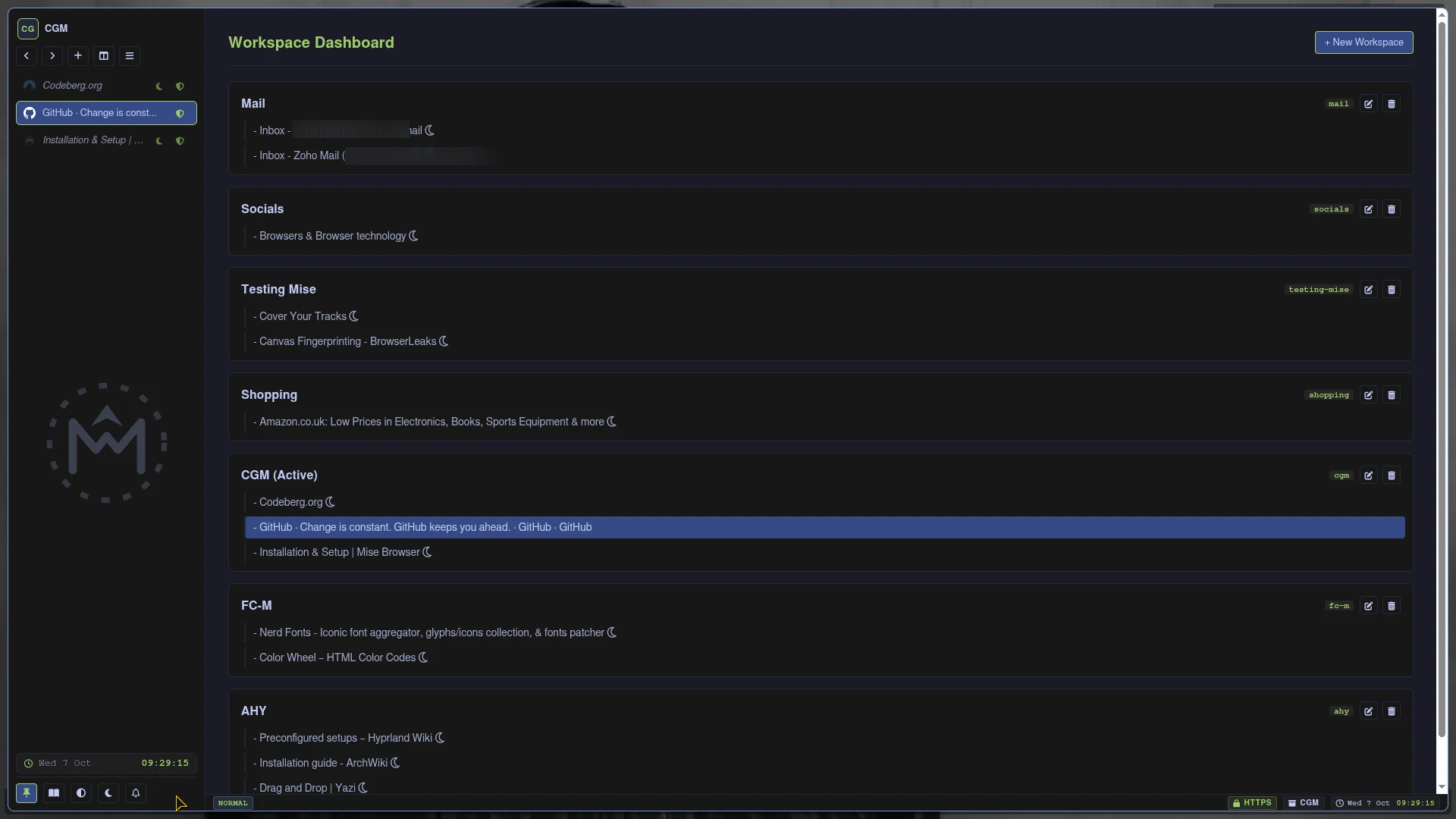
- Press Ctrl + Shift + W to open or close the Dashboard.
- Visual Overview: Displays every workspace, highlighting the currently active workspace, along with the title and status of every tab.
- Tree Navigation: Use the Up and Down arrow keys to traverse workspaces and tabs, and press Enter to jump directly to any tab.
- Workspace Creation: Click the + New Workspace button or use the input prompt to create a new isolated container workspace.
- Workspace Renaming: Double-click any workspace header to edit its name inline.
- Drag-and-Drop Organization:
- Reorder tabs within a workspace by dragging them up or down.
- Move tabs between different workspaces by dragging a tab item and dropping it onto another workspace node. When moved across workspaces, the tab automatically adapts to the target container partition.
- Tab & Workspace Deletion: Press Delete or Ctrl + W on any highlighted node in the dashboard tree to close tabs or remove an empty workspace.
Session Persistence
Your workspace layout, active tabs, titles, container assignments, and sleeping states are saved continuously to:
~/.config/mise-browser/session.jsonIf the browser closes or restarts, your complete environment is restored exactly as you left it.