
Notes, Bookmarks & Quickmarks
Mise incorporates productivity utilities directly into the browser, saving all data as plain text and JSON files in your local user configuration directory.
Markdown Quick Notes (Ctrl + N)
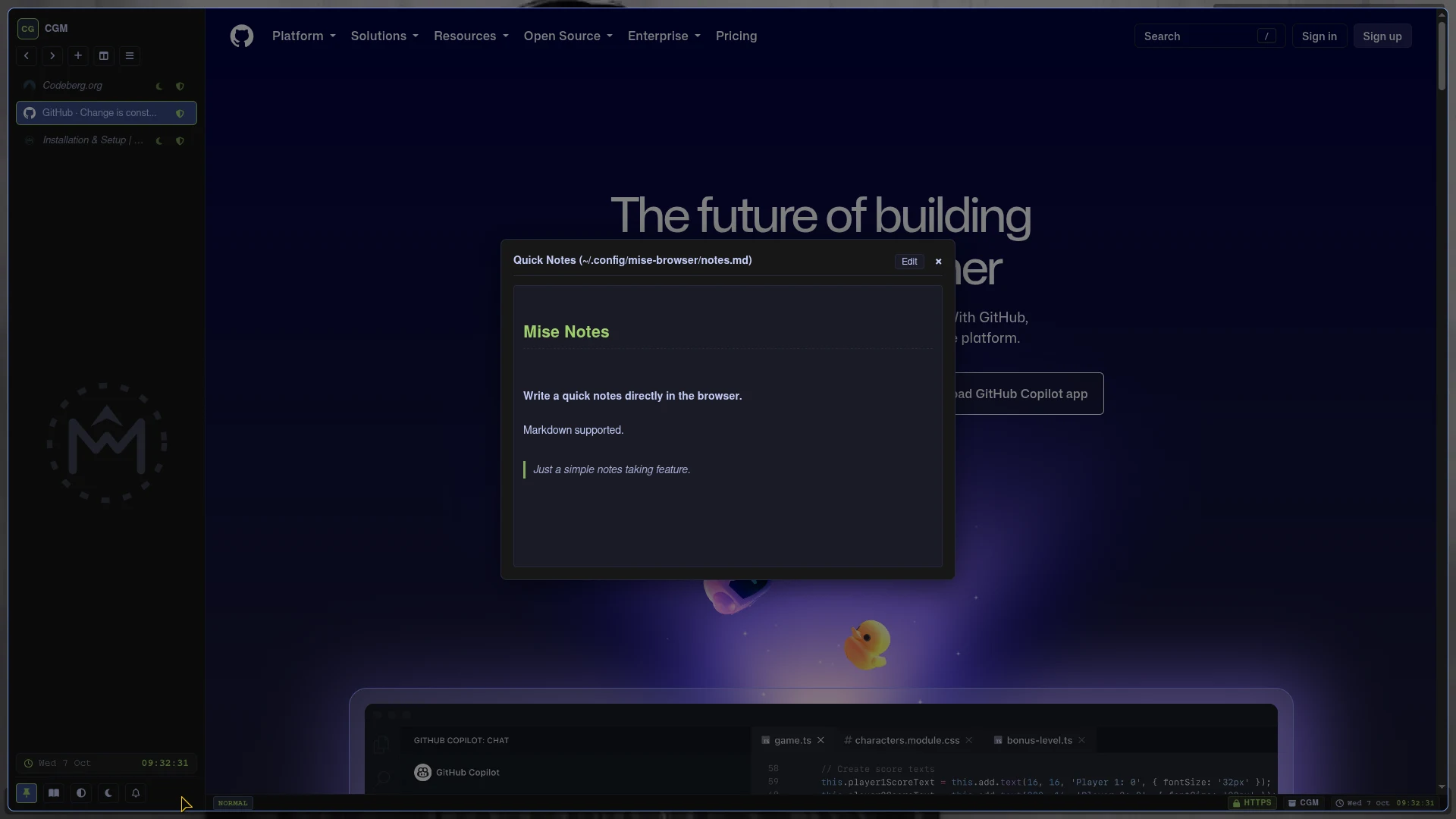
Mise includes an integrated scratchpad overlay for taking notes alongside your research:
- Press Ctrl + N to open or close the Notes overlay.
- Supports GitHub Flavored Markdown syntax.
- Editing Mode: Click into the textarea to write notes.
- Instant Persistence: All notes are automatically saved to:text
~/.config/mise-browser/notes.md - Because notes are stored in a standard Markdown file, you can view or edit them outside Mise using Neovim, Obsidian, or any external text editor.
Bookmarks Manager (Ctrl + Shift + B)
The Bookmarks overlay allows you to manage saved links with full keyboard navigation:
- Press Ctrl + Shift + B to toggle the Bookmarks Manager.
- Add Bookmark: Press Ctrl + Shift + A while viewing any page to save the current URL into your bookmarks collection.
- Fuzzy Search: Start typing inside the overlay to filter bookmarks dynamically.
- Open Bookmark: Use the arrow keys to highlight a bookmark and press Enter to open it.
- Delete Bookmark: Highlight a bookmark and press Delete to remove it from your collection.
- Bookmarks are stored in:text
~/.config/mise-browser/bookmarks.json
Quickmarks (Single-Key Fast Jump)
Quickmarks provide instantaneous, single-key bookmarking inspired by Vim and window managers:
1. Setting a Quickmark
- While on any page, press Ctrl + Shift + Q.
- An indicator prompt asks for a key binding.
- Press any single alphanumeric key (for example,
gfor GitHub orrfor Reddit). - The current URL is permanently bound to that key.
2. Jumping to a Quickmark
- From anywhere in the browser, press Ctrl + J.
- Press the assigned letter key (e.g.
g). - Mise instantly navigates your active tab to the bound URL.
Quickmarks are saved in:
text
~/.config/mise-browser/quickmarks.jsonActionable History Overlay (Ctrl + Shift + H)
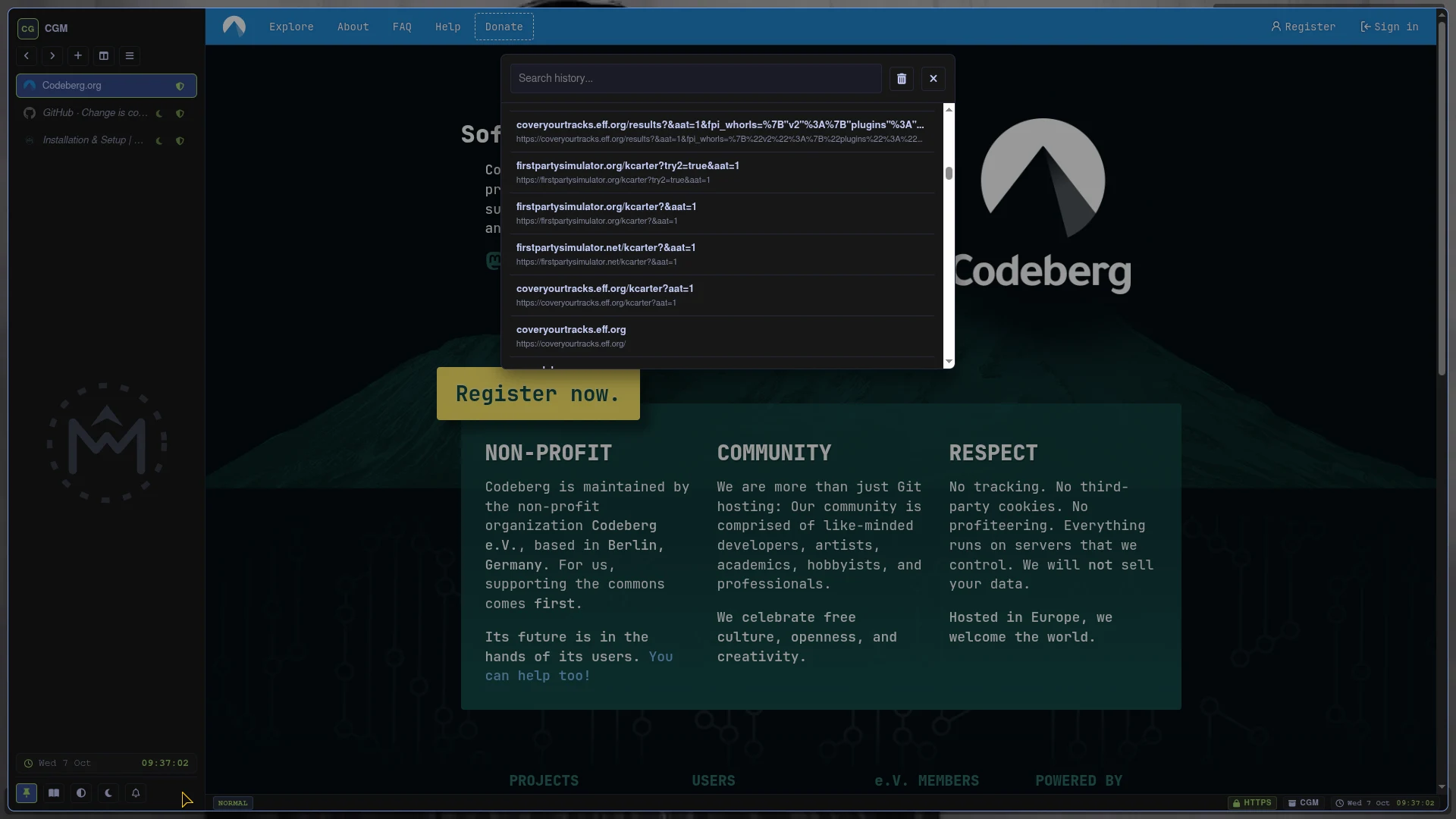
- Press Ctrl + Shift + H to open the History overlay.
- Search through your browsing history in real time.
- Press Enter on any result to open the page.
- Click Purge History to wipe all stored history records from
history.json.