
Command Centre & Palette Reference
The Command Centre gives you rapid, searchable access to all Mise operations, internal features, and keyboard shortcuts from a full-page educational overlay.
Accessing the Command Centre
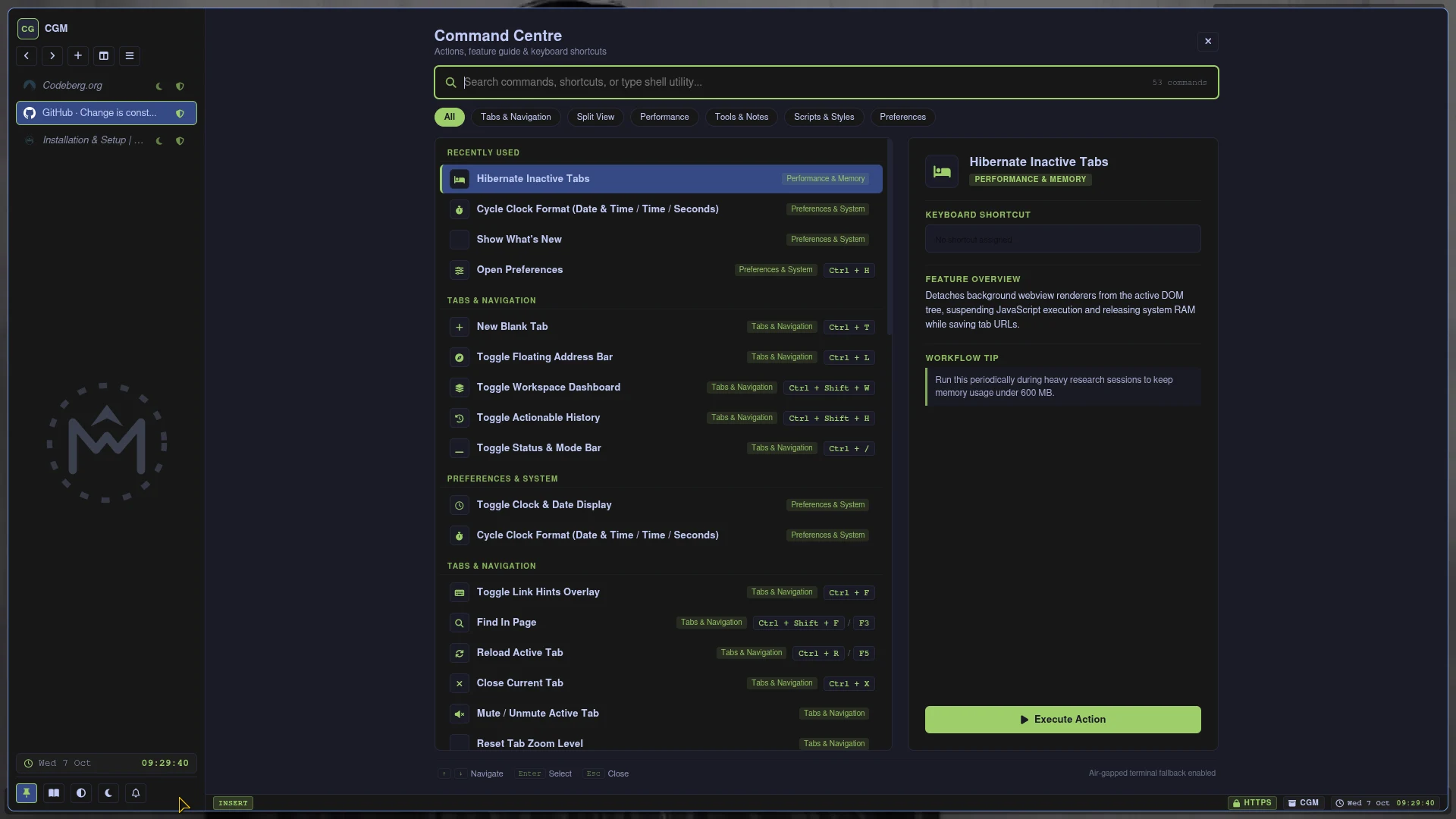
- Press Ctrl + P from anywhere in Mise.
- Type to fuzzy-search commands, shortcuts, and keywords dynamically.
- Click category filter chips (All, Tabs & Navigation, Split View, Performance, Tools & Notes, Scripts & Styles, Preferences) to filter actions instantly.
- Use Up and Down arrow keys (or hover with your cursor) to inspect any command.
- View the right-hand Feature Inspector card for in-depth architecture descriptions, default and customized keybindings, and workflow tips.
- Press Enter or click Execute Action to run the selected action.
- Press Escape or click the close button to dismiss the overlay and return focus to your webpage.
Two-Column Interface Layout
- Left Column (Command List): A compact, categorised list of operations featuring icons, action titles, category tags, and active keybinding badges.
- Right Column (Feature Inspector): A static preview panel detailing the selected or hovered command, displaying its assigned shortcut, action identifier, operational architecture, workflow recommendations, and a direct execution trigger.
- Clipboard-Mediated Terminal Fallback: If an entered search does not match any internal command, pressing Enter or executing the fallback securely passes the instruction to your external terminal using the oversight protocol.
Categorised Command Directory
Tabs & Navigation
| Command Title | Shortcut | Action ID | Description |
|---|---|---|---|
| New Blank Tab | Ctrl+T | spawn-tab | Creates an isolated webview in the current workspace. |
| Toggle Floating Address Bar | Ctrl+L | toggle-address | Modal address bar with query completion and bang search engine aliases. |
| Toggle Workspace Dashboard | Ctrl+Shift+W | toggle-dashboard | Full-page hierarchical tree of all workspaces, tabs, and windows. |
| Toggle Actionable History | Ctrl+Shift+H | toggle-history | Local history ledger with domain-level filtering and record purging. |
| Toggle Link Hints Overlay | Ctrl+F | trigger-hints | Letter tags overlaid on clickable webpage links for keyboard browsing. |
| Find In Page | Ctrl+Shift+F / F3 | toggle-find | In-page text search overlay across active webview content. |
| Reload Active Tab | Ctrl+R / F5 | reload-active-tab | Refreshes current webview document while preserving session state. |
| Close Current Tab | Ctrl+X | remove-tab | Disposes of active webview and reclaims allocated V8 heap memory. |
| Mute / Unmute Active Tab | — | — | Toggles Chromium audio output for the active tab without pausing playback. |
| Reset Tab Zoom Level | — | — | Restores webview zoom factor back to 100% default. |
| Focus Sidebar Tab List | Ctrl+S | focus-sidebar | Moves keyboard focus directly into the vertical tab list. |
| Focus Navigation Buttons | Ctrl+Shift+N | focus-nav-buttons | Cycles keyboard focus across toolbar navigation controls. |
| Focus Active Webview | Ctrl+W | focus-webview | Returns keyboard and typing focus directly to the guest webpage. |
| Toggle Sidebar (Expand / Collapse) | Ctrl+Shift+Z | toggle-zen-mode | Alternates sidebar between 220px expanded width and 48px icon strip. |
| Toggle Status & Mode Bar | Ctrl+/ | toggle-status-bar | 22px footer status bar displaying modal state, target URL, and TLS encryption. |
| Toggle Auto-Collapse Sidebar | — | — | Pins sidebar open or enables auto-shrink to 36px strip with hover expansion. |
| Toggle Zen Mode (Hide Sidebar) | — | — | Completely hides peripheral sidebar chrome for edge-to-edge reading. |
Split View
| Command Title | Shortcut | Action ID | Description |
|---|---|---|---|
| Toggle Dual-Split View (Side-by-Side) | Ctrl+Shift+S | toggle-split | Tiles two webviews side by side in equal columns for multitasking. |
| Toggle Dual-Split View (Stacked) | — | — | Tiles two webviews stacked vertically in top and bottom rows. |
| Cycle Split View Orientation | — | — | Cycles layout geometry between vertical side-by-side and horizontal stacked. |
| Switch Split Pane Focus | Ctrl+O | switch-split-focus | Moves active input and scroll focus to the opposite split pane. |
| Swap Split Panes | Ctrl+\ | swap-split-panes | Reverses positions of primary and secondary split panes. |
| Close Split View | — | — | Exits dual-split mode and restores primary webview to full viewport. |
Performance & Memory
| Command Title | Shortcut | Action ID | Description |
|---|---|---|---|
| Hibernate Inactive Tabs | — | — | Detaches background webviews from DOM to free CPU cycles and RAM. |
| Wake All Tabs in Workspace | — | — | Restores and reconnects all sleeping tabs in the active workspace. |
Tools & Notes
| Command Title | Shortcut | Action ID | Description |
|---|---|---|---|
| Toggle Quick Notes | Ctrl+N | toggle-notes | Markdown scratchpad saved locally to ~/.config/mise-browser/notes.md. |
| Bookmarks & Quickmarks Manager | Ctrl+Shift+B | toggle-bookmarks | Ledger manager for saved bookmarks and single-key quickmarks. |
| Bookmark Current Page | Ctrl+Shift+A | add-bookmark | Saves current webpage title and URL into bookmarks collection. |
| Set Quickmark | Ctrl+Shift+Q | set-quickmark | Binds active webpage to an instant single-key navigation shortcut. |
| Jump to Quickmark | Ctrl+J | jump-quickmark | Prompts for assigned quickmark character to navigate immediately. |
| Toggle Downloads Shelf | Ctrl+Shift+D | toggle-downloads | Bottom drawer showing transfer speed, progress bars, and file links. |
| Toggle Active Webview DevTools | F12 / Ctrl+Shift+I | toggle-devtools | Chromium developer tools for inspecting DOM, network, and console. |
| Toggle Global Media Playback | Ctrl+Shift+0 / F10 | toggle-global-media | Global play and pause toggle across all active media streams. |
| Toggle Reader View on Active Tab | F9 | toggle-reader-view | Distils webpage into a clean, distraction-free reading layout. |
User Scripts & Styles
| Command Title | Shortcut | Action ID | Description |
|---|---|---|---|
| Open User Scripts Directory | — | — | Opens ~/.config/mise-browser/scripts in default system file manager. |
| Open User Styles Directory | — | — | Opens ~/.config/mise-browser/styles in default system file manager. |
| Reload User Scripts and Styles | — | — | Hot-reloads custom scripts and stylesheets across active webviews. |
Preferences & System
| Command Title | Shortcut | Action ID | Description |
|---|---|---|---|
| Open Preferences | Ctrl+H | toggle-help | Full-page settings view for GPU switches, memory caps, and themes. |
| Toggle Private Browsing Mode | Ctrl+Shift+P | toggle-private-mode | Switches session to in-memory non-persistent partition. |
| Toggle Colour Theme (Dark / Light) | — | — | Swaps UI styling and webview shader inversion between dark and light. |
| Toggle Application Menu Bar | F1 | toggle-menu-bar | Shows or hides the native top window menu bar. |