
True Tab Hibernation (Sleeping Tabs)
True Tab Hibernation is a core performance feature in Mise Browser designed to cap Chromium memory and process consumption on fanless and low-resource hardware.
Why True Hibernation Matters
Standard browsers keep background tabs mounted in the DOM. Even when background timers are throttled, each open tab maintains an active Chromium renderer process consuming between 100 MB and 400 MB of RAM, in addition to background cache allocations. On fanless devices, 15 open tabs can quickly consume 3 GB of memory and induce CPU thermal throttling.
Mise resolves this by implementing True Hibernation: When an inactive tab exceeds its sleep timer, its <webview> element is completely detached from the DOM. This terminates the Chromium renderer process, dropping its RAM consumption to zero while keeping the tab visible in the sidebar.
What Gets Preserved
Before detaching an idle tab, Mise queries the live page to save its complete state:
- Live URL: Preserves the exact current URL, including in-page hash changes and deep links.
- Page Title: Retains the human-readable document title in
~/.config/mise-browser/session.json. - Exact Scroll Coordinates: Captures
[window.scrollX, window.scrollY]offsets so that long articles, documentation pages, and feeds reopen at the precise reading position.
Audio & Media Protection
Tabs currently playing audio or video are strictly protected:
- If you are playing music, a podcast, or a video on YouTube or Spotify in a background tab, Mise detects the active media stream via
media-started-playingandisCurrentlyAudible(). - Audible tabs are exempted from sleep scans and will never be hibernated while playing.
Re-hydration on Demand
Waking a dormant tab is instantaneous:
- Click the sleeping tab in the sidebar or select it using keyboard navigation.
- Mise re-instantiates the
<webview>element inside the appropriate workspace container partition. - Upon page load, the saved scroll position is automatically restored.
- The sleeping indicator clears, and the tab becomes fully active.
Cold Boot Hibernation
When you launch Mise Browser with dozens of tabs across multiple workspaces:
- Only the single active tab in your current workspace is mounted into memory on startup.
- All background tabs initialise in dormant sleep state, displaying their saved titles and sleep badges in the sidebar.
- The browser opens in seconds and uses minimal initial RAM.
Configuring the Sleep Timeout
You can customise how quickly tabs hibernate using either the in-browser Preferences overlay or the native top menu bar:
Method 1: In-Browser Preferences Overlay (Ctrl + H)
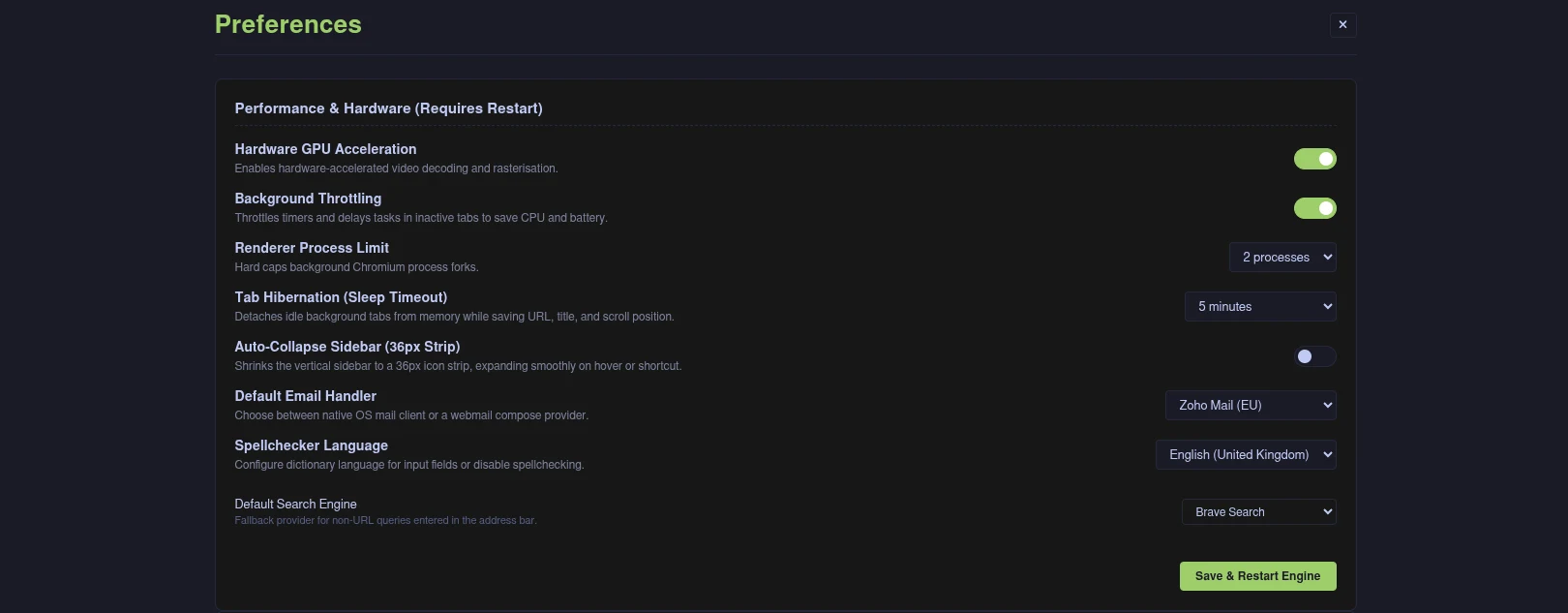
- Open Preferences by pressing Ctrl + H (or open the Command Palette with Ctrl + P and select Preferences).
- Locate Tab Hibernation (Sleep Timeout) under the Performance & Hardware section.
- Choose your preferred idle duration from the dropdown:
- 5 minutes: Aggressive memory saving.
- 15 minutes: Recommended default for daily workflow.
- 30 minutes: Moderate timeout.
- 1 hour: Relaxed timeout.
- Never (Disabled): Keeps all background tabs awake. The change takes effect immediately without needing to restart the browser.
Method 2: Native Menu Bar (F1)
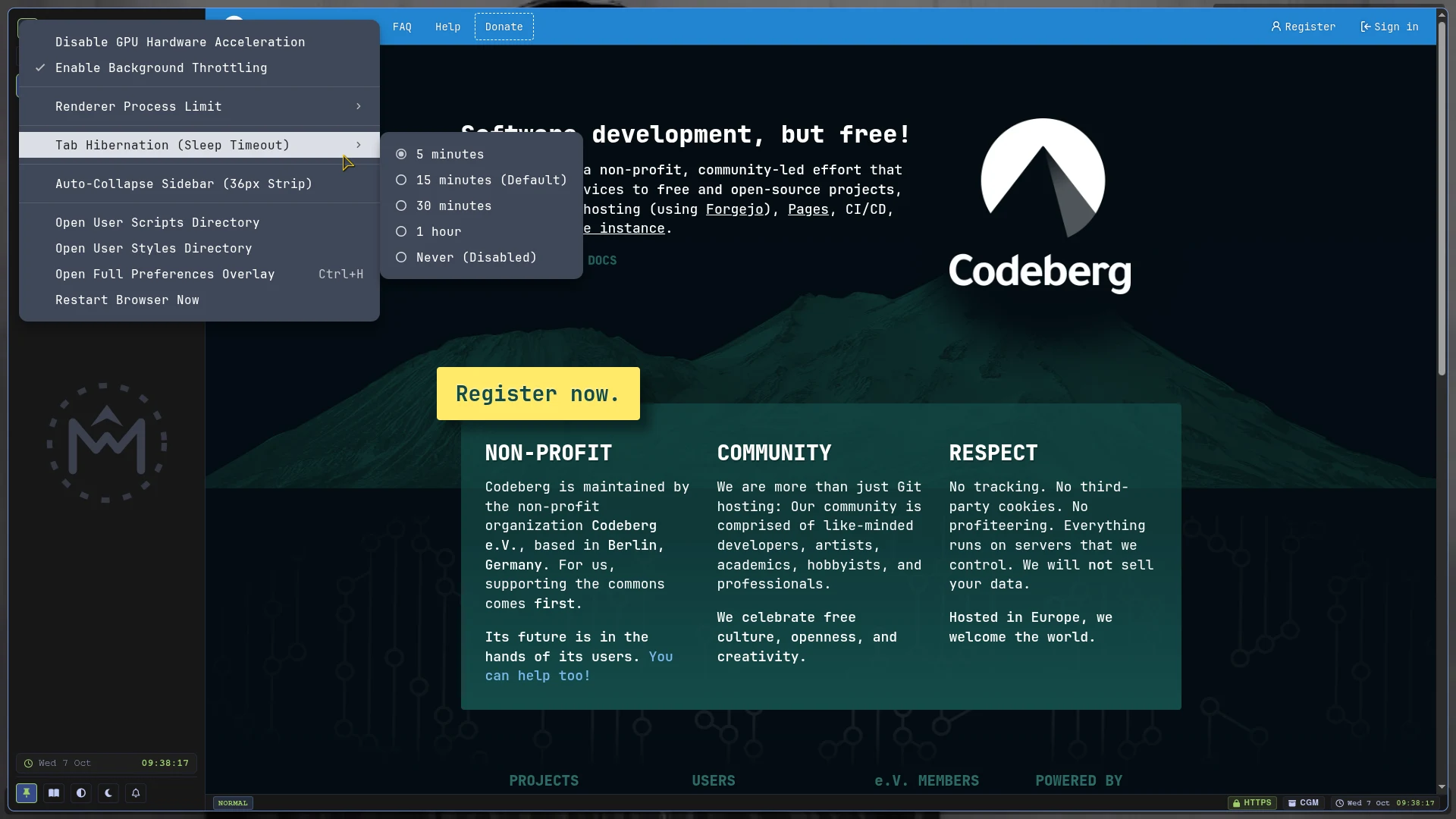
- Press F1 to display the native top menu bar.
- Click Mise Settings -> Tab Hibernation (Sleep Timeout).
- Select your desired sleep timeout duration.
Manual Hibernation Controls
You can also trigger hibernation manually via the Command Palette (Ctrl + P):
- Hibernate Inactive Tabs: Immediately detaches all eligible idle background tabs across all workspaces.
- Wake All Tabs in Workspace: Re-instantiates all sleeping tabs in the active workspace at once.